
You can control when back-in-stock emails are sent to customers once a product is available again. This includes both the first email and an optional follow-up reminder.
To configure the timing, go to Back-in-stock Notifications and click on the Email Scheduling tab.
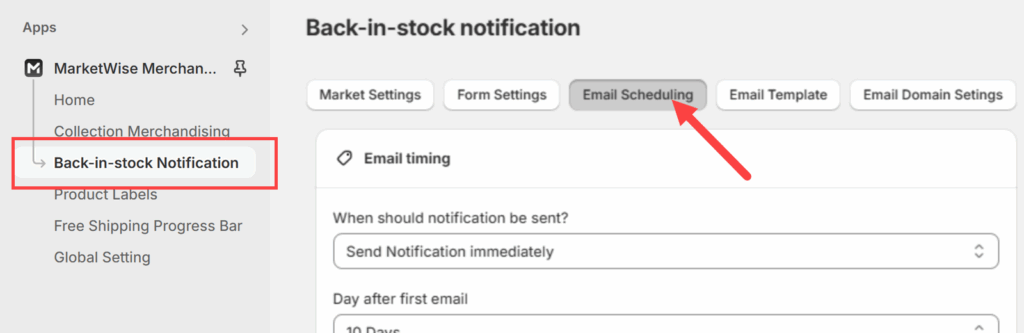
Setting When the First Email Is Sent
Under When should notification be sent? dropdown, choose how soon the first email should go out after a product is restocked.
You can either:
- Send Notification Immediately – Email goes out as soon as the product is back in stock.
- Send by Market – Set different timings for each market individually.
Setting Up a Follow-Up Email
You can also send a second email as a reminder in case the product is still available. Use the Day after first email field to set the number of days after the first email when the second one should be sent.
If you’re using Send by Market, you can set a different follow-up schedule per market. For example:
- Send the follow-up email 7 days later for Mexico
- Send the follow-up email 5 days later for United Kingdom
Choosing the Time of Day
In the Time of day field, choose when the emails should be sent. Emails are scheduled based on your store’s timezone, which is displayed below the field.
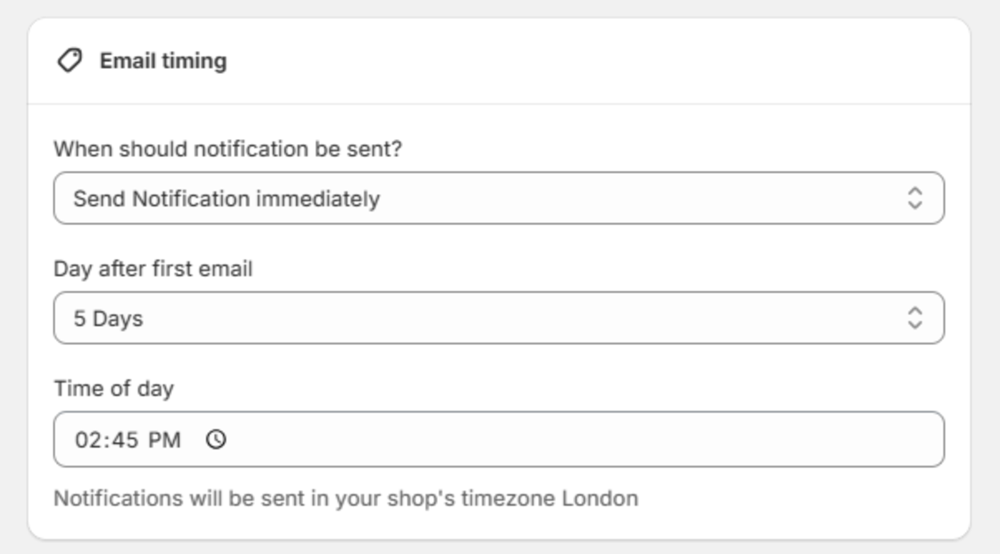
Once you’ve set your preferences, click Save to apply the changes.
For options on customizing the notification form, refer to Customizing the Notification Form guide.