
Back-in-stock notifications let customers sign up to be alerted when sold-out products are restocked. These notifications are specific to each market, so customers only receive alerts for the region they’re shopping in.
Once enabled, the Add to Cart button on out-of-stock products is replaced with a Notify Me When Available button. When customers click this button, a form appears for them to enter their email or phone number. They’ll be notified as soon as the product becomes available again in that specific market.
To set this up, click on the Back-in-stock Notification option from the left sidebar of your app.
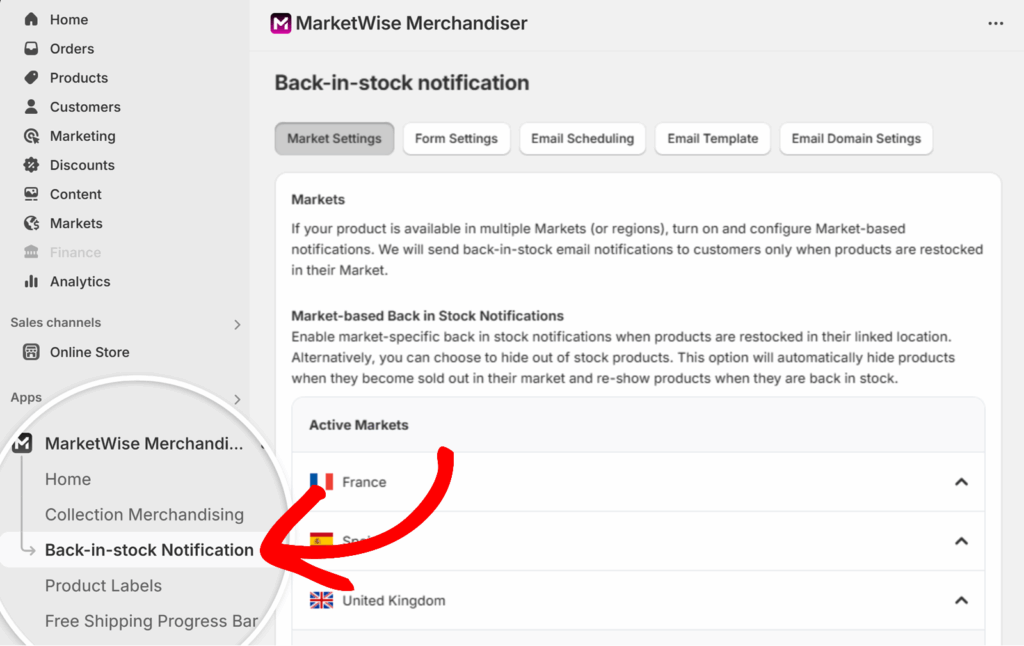
On the Back-in-stock notification page, you’ll see a list of your active and inactive markets.
Under Active Markets, click on any market to expand its settings.
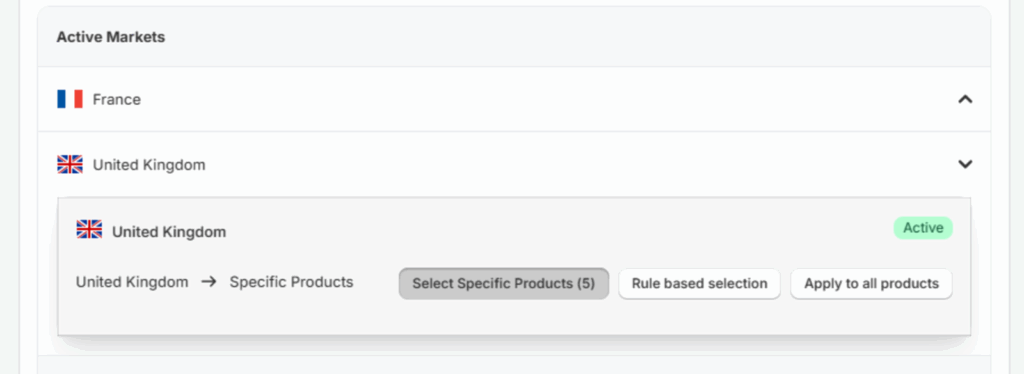
For each market, you can choose how the notification should be applied. You have three options:
- Select Specific Products
- Rule-based Selection
- Apply to All Products
Selecting Specific Products
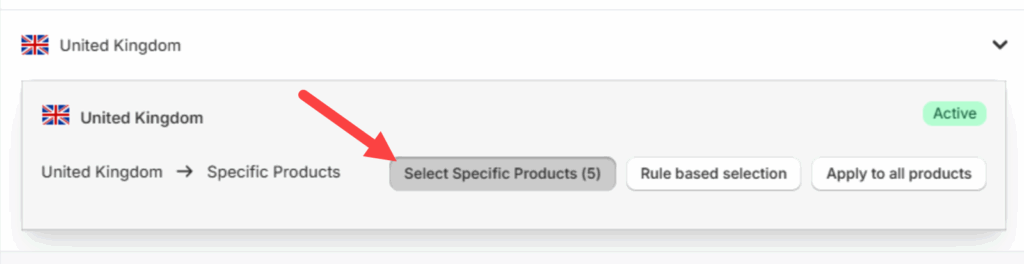
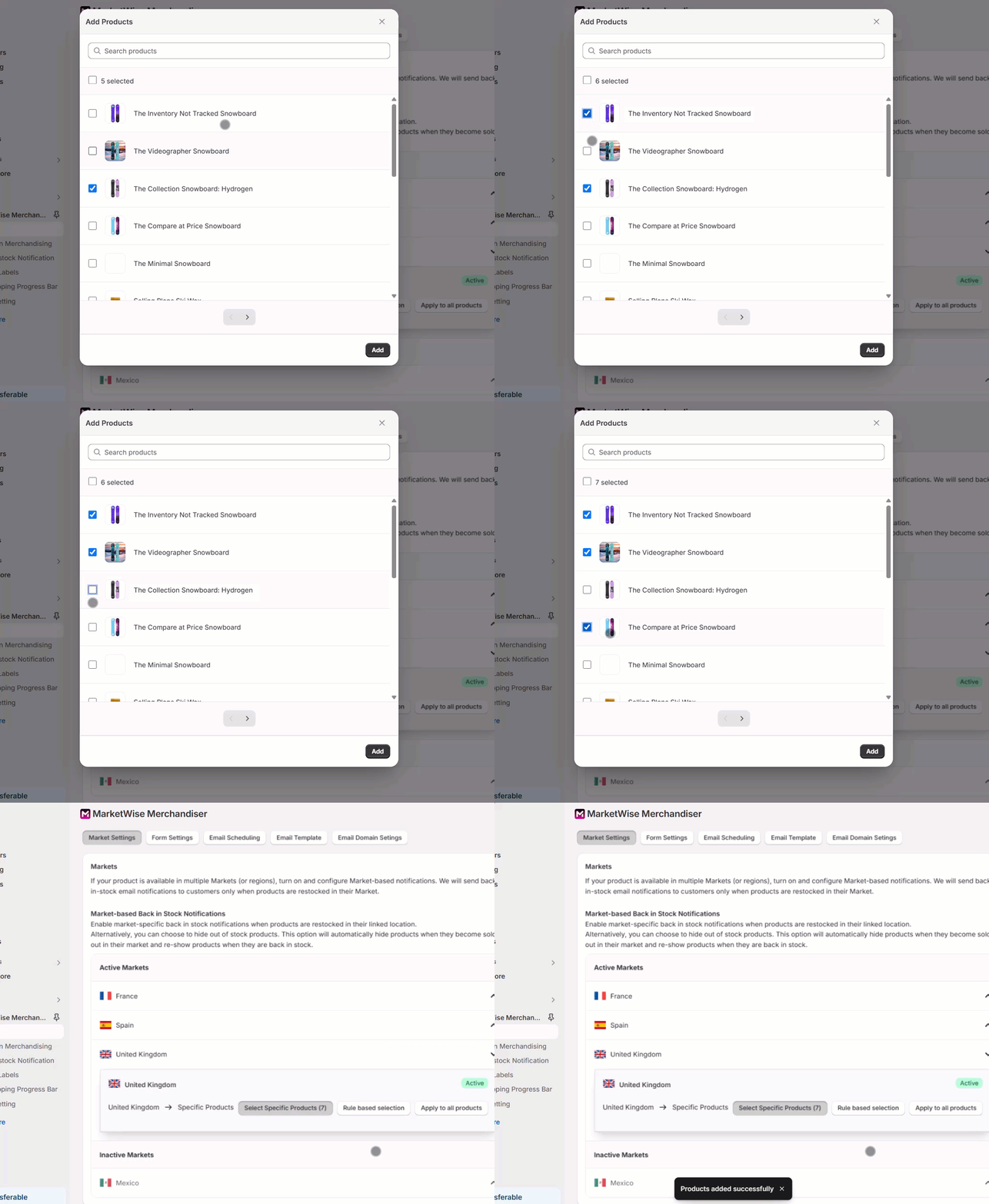
Click Select Specific Products to open a popup. This shows a list of all products in your store.
Next, use the checkboxes to select or deselect the products you want to include. Click Add once done.
Rule-Based Selection
If you want to automatically apply back-in-stock notifications to products that meet specific conditions, use the Rule-Based Selection option.
This method ensures that existing and future products matching the rules you set will be included without manual updates.
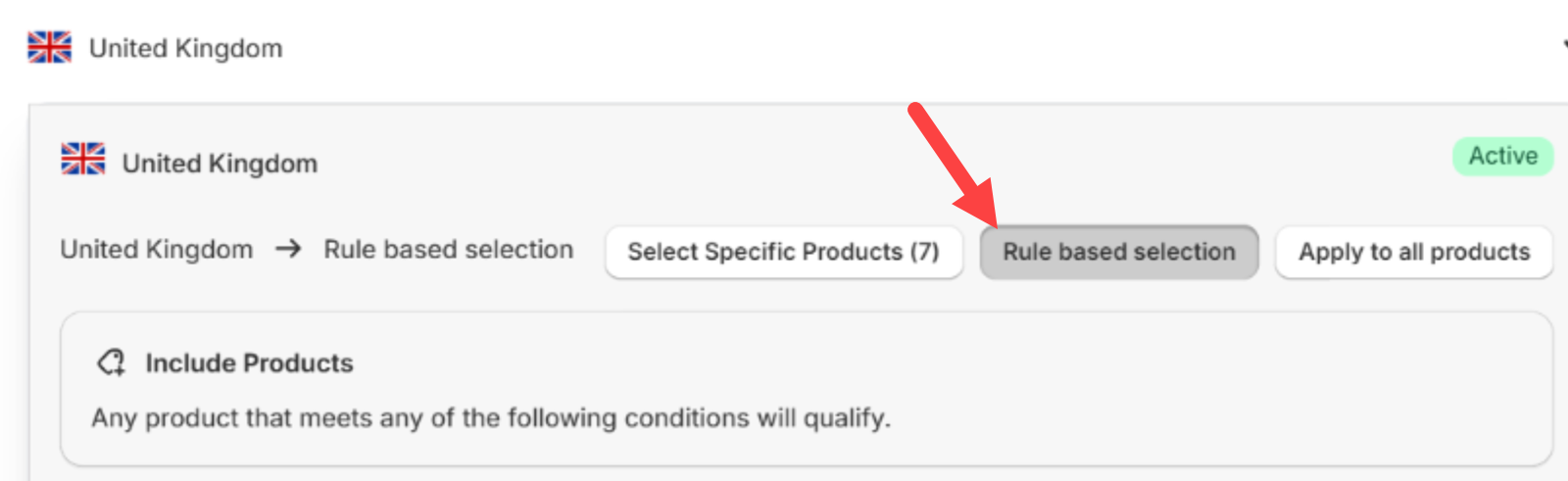
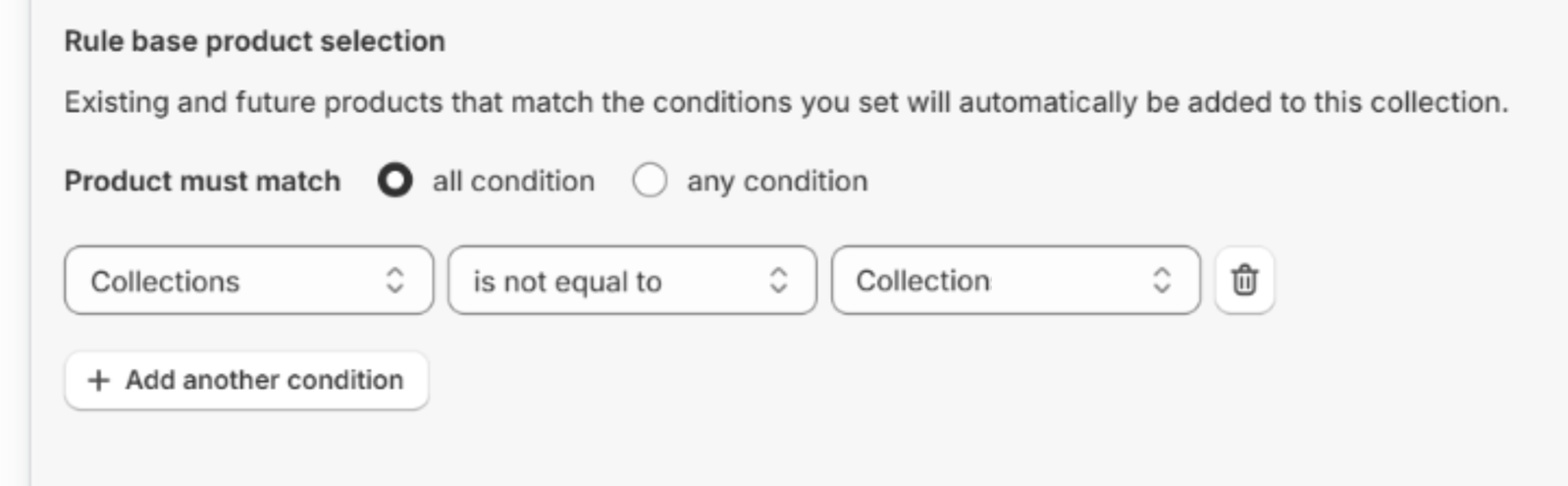
Use the dropdown menus to build your rule.
- In the first dropdown, select whether to filter by Collections or Tag.
- The second dropdown lets you choose is equal to or is not equal to.
- Then, from the third dropdown, pick a value from your existing collections or tags.
Applying to All Products
If you want to enable notifications for every product in the selected market, select the Apply to All Products option.
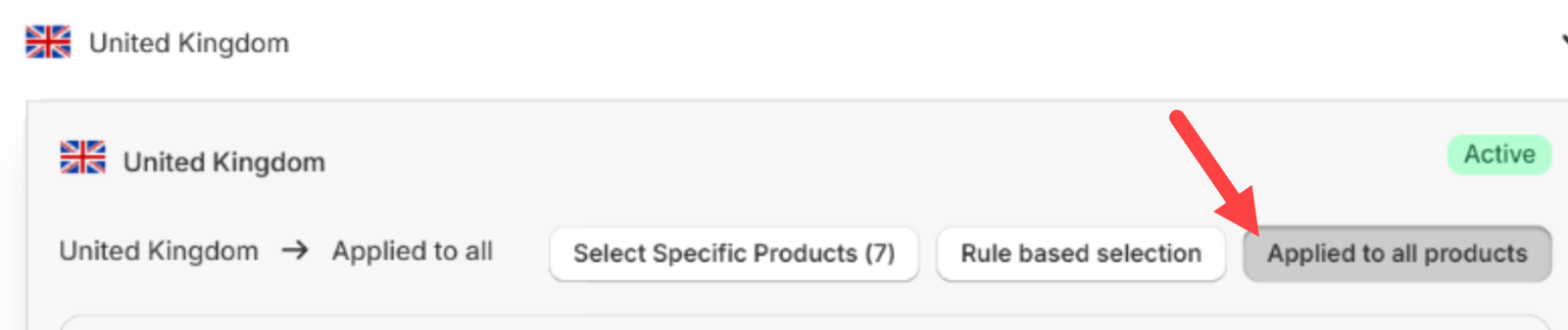
Once a method is selected and saved, the back-in-stock functionality is live for that market. Customers will see a Notify Me When Available button on products with zero inventory.
For options on customizing the notification form, refer to Customizing the Notification Form guide.