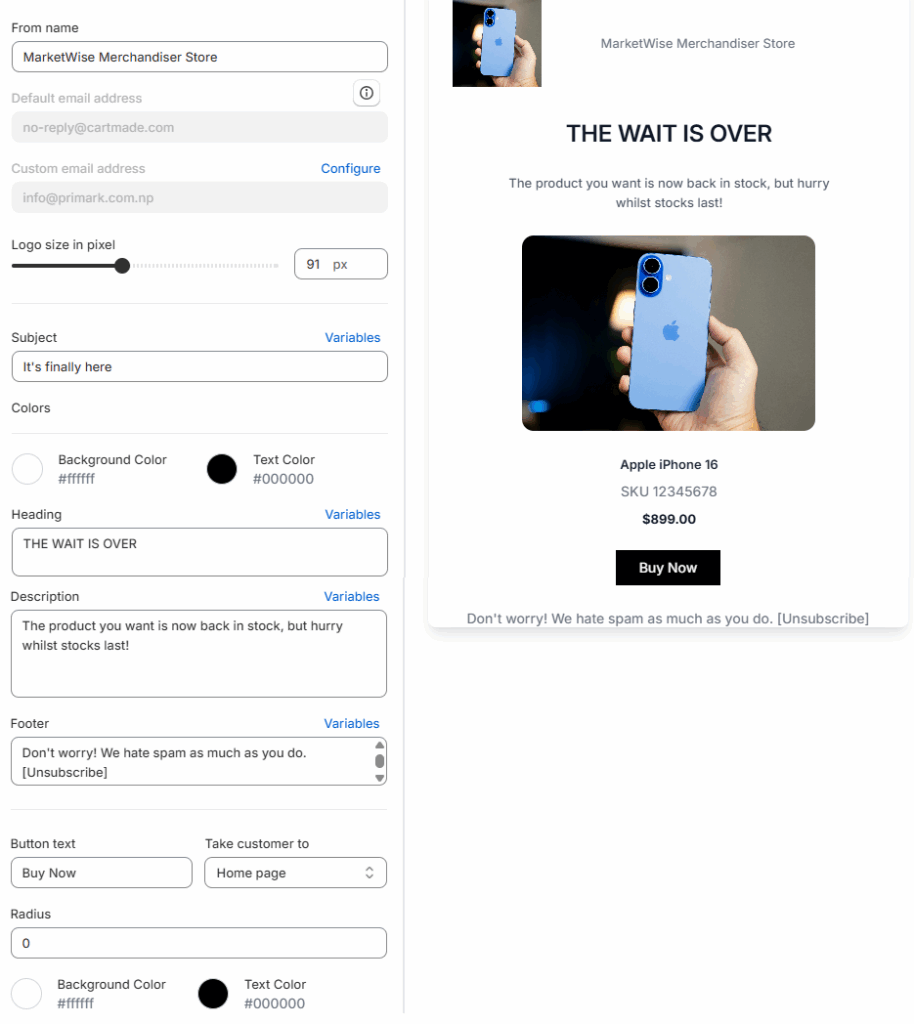
You can customize the content and appearance of the email sent to customers when a product is back in stock.
To do edit the subject, heading, message, and styling, go to Back-in-stock notification > Email Template tab.
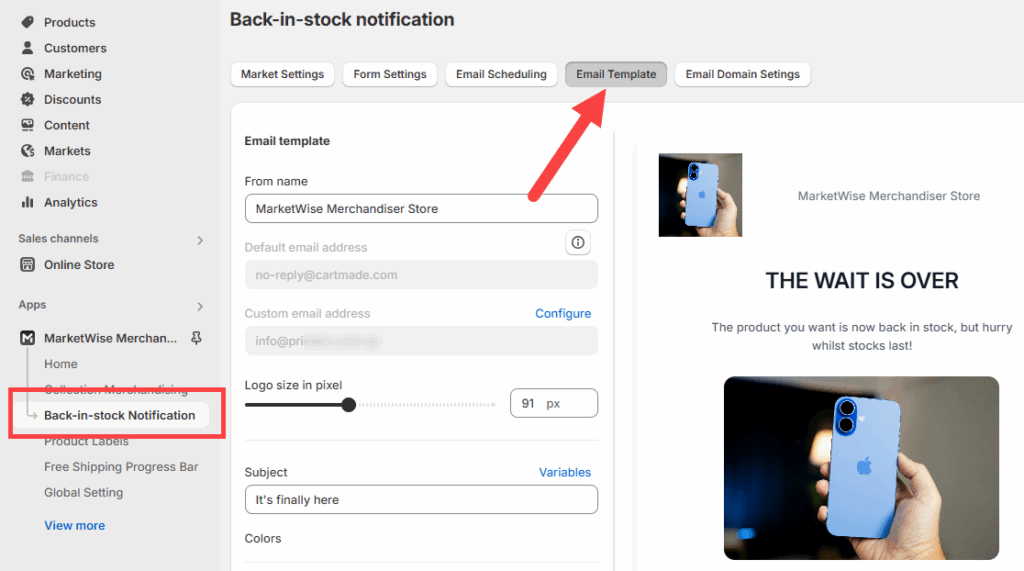
Updating the Sender Information
At the top, enter your store or brand name in the From name field. This name will appear as the sender in your customers’ inbox.
Below that, the Default email address is fixed. However, you can configure a Custom email address to send notifications from your own domain. Click Configure to open the Email Domain Settings.
Adjusting the Email Layout and Styling
Use the Logo size in pixel slider to change the size of your store logo at the top of the email.
Below, choose a Background Color and Text Color to match your store’s branding. These apply to the entire email body and update the live preview on the right.
Editing the Email Content
You can modify the following fields to personalize the email:
- Subject – The email’s subject line shown in the inbox
- Heading – Large bold text shown at the top of the email
- Description – Main body message customers will read
- Footer – Optional message, such as your unsubscribe link
Each field has a Variables option that lets you insert dynamic content like product names or prices. Click Variables next to the field to view and use them.
Configuring the Button
At the bottom of the template, you can customize the button:
- Button text – Change the label (e.g., “Buy Now”)
- Take customer to – Choose where the button links to (e.g., Home page)
- Radius – Set the roundness of the button’s corners
- Button colors – Pick a background and text color for the button