
You can customize how the back-in-stock notification form appears on your product pages. This includes the form display style, button appearance, and text content.
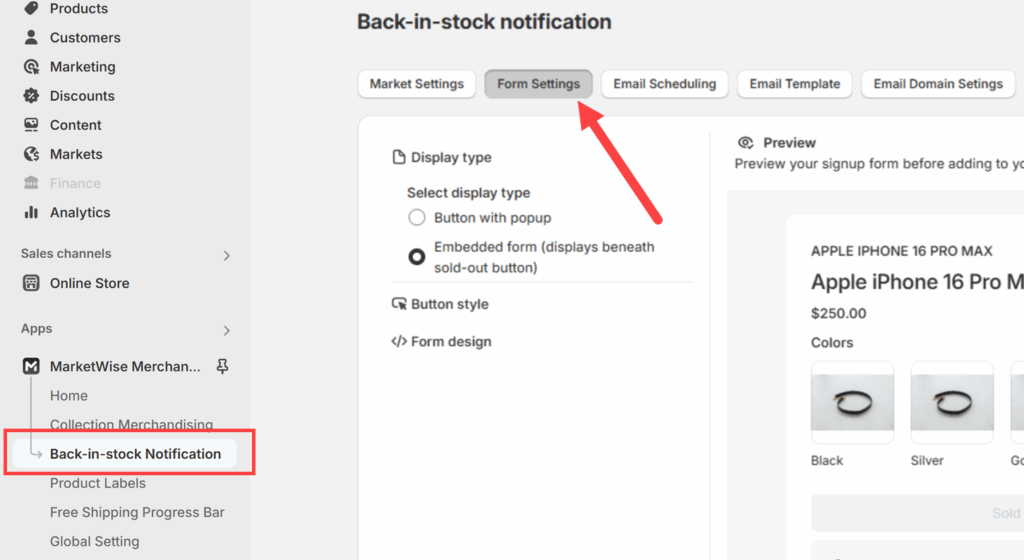
To do so, go to Back-in-stock Notification and then click the Form Settings tab from above.
Choosing the Form Display Style
From the Form Settings tab, select how you’d like the form to appear:
- Button with popup: A “Notify me when available” button appears on out-of-stock products. When clicked, it opens a popup form.
- Embedded form: The form appears directly beneath the sold-out button without a popup.
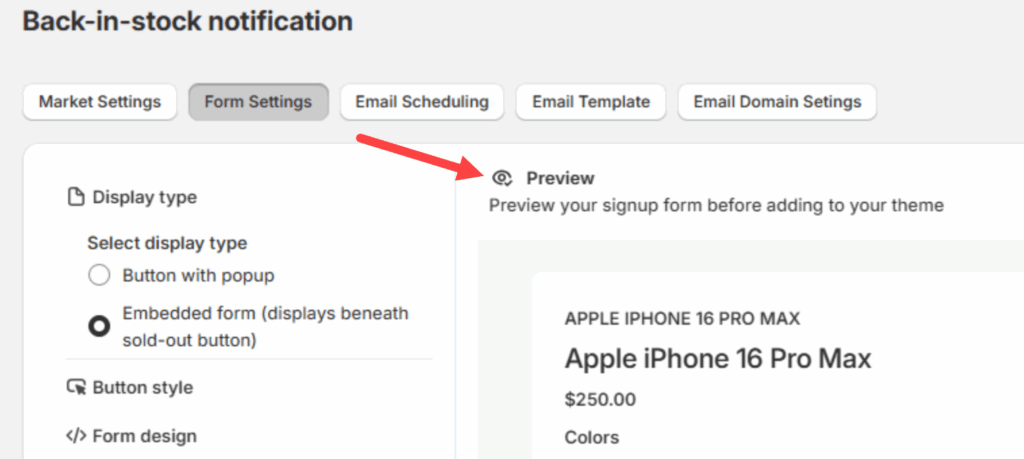
Note: Check out the real-time preview to the right to see how each display will look.
Styling the Notification Button
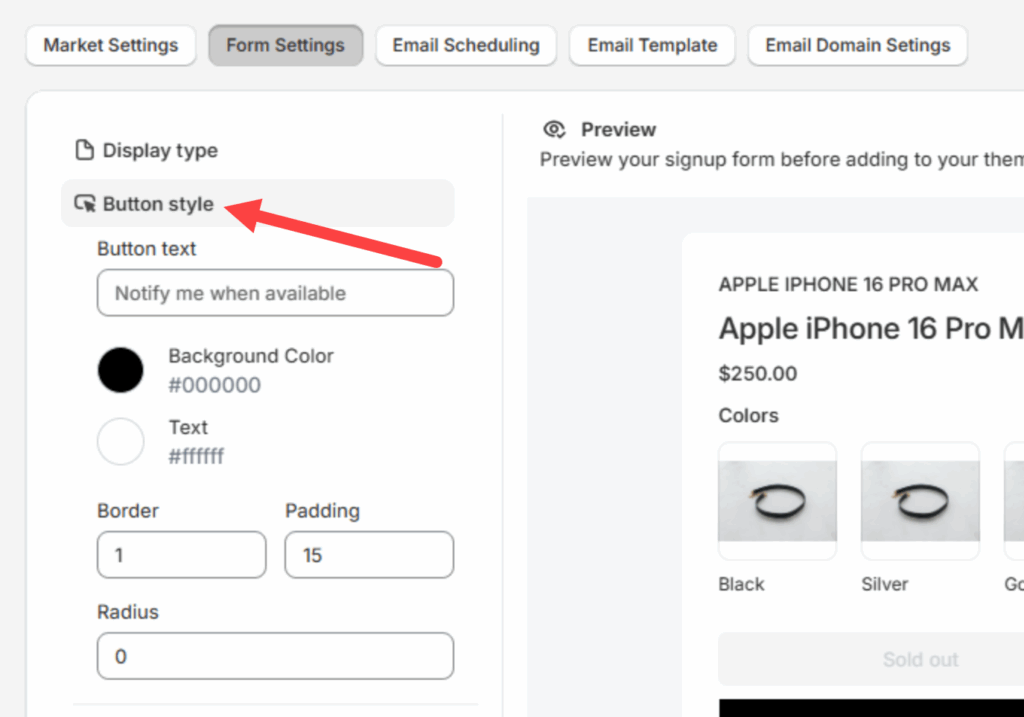
Click the Button style option to change how the button looks. You can adjust:
- Button text
- Background and text color
- Border width, padding, and corner radius
Designing the Popup Form
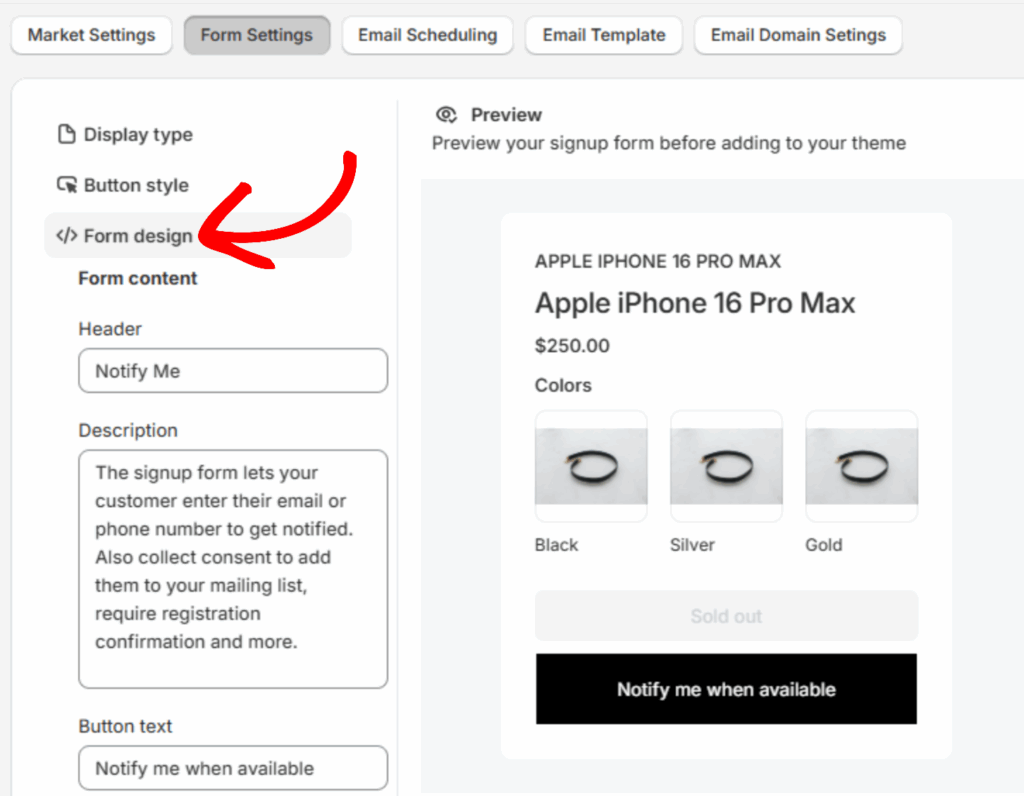
Click Form design to modify the content and styling of the form that appears in the popup (or embedded form, if that’s selected).
Settings include:
- Header: The title of the form (e.g., “Notify Me”)
- Description: A brief explanation of what the form does
- Button text: Label for the submit button
- Submit button colors: Background and text color
- Button border and padding
- Text below the button: Optional note like “You’ll only receive notifications for this product”
- Overlay and background opacity
Once you’re happy with the design, remember to click Save.