
The Free Shipping Progress Bar can be tailored to match your brand’s design and shown in specific areas of your store. You can also customize the messages, layout style, and colors to enhance the shopping experience.
To do so, go to Free Shipping Progress Bar from the app admin and select the Shipping Info & Placement tab.
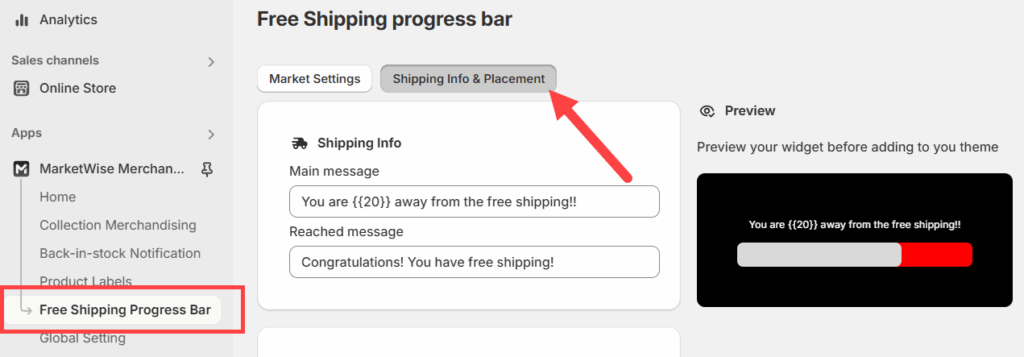
Below are the options available in this page:
Note: The live preview on the right updates instantly as you adjust settings, helping you see exactly how the progress bar will appear on your store.
Setting the Shipping Messages
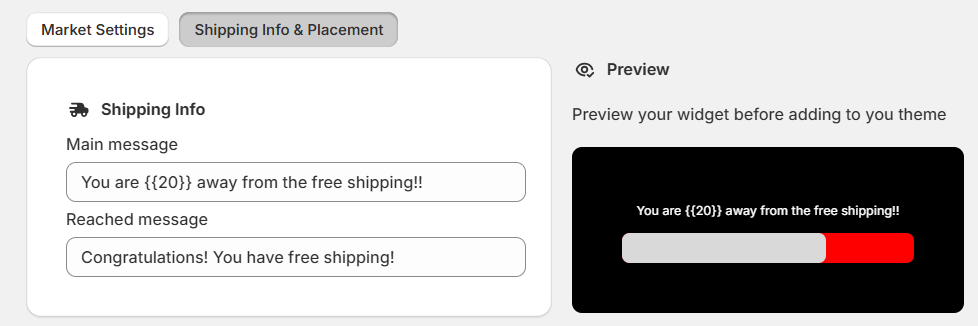
In the Shipping Info section, you can update the messages shown to customers based on their cart total.
- Main message: This message appears when the cart total is below the free shipping threshold.
- Reached message: This message appears once the customer qualifies for free shipping.
Choosing Where the Progress Bar Appears
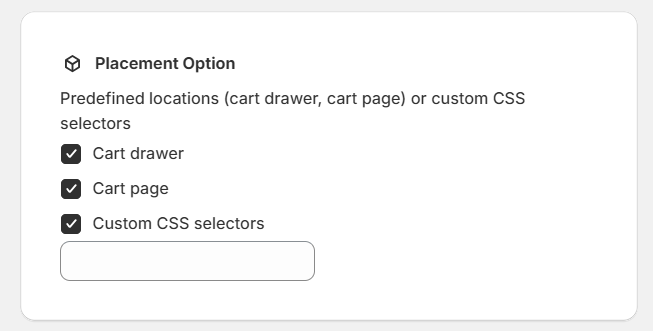
Use the Placement Option section to choose where the progress bar should be displayed in your store.
You can select from:
- Cart drawer
- Cart page
- Custom CSS selectors
Select one or more checkboxes to control the visibility. If you’re using a custom theme layout, the custom selector option can help place the bar exactly where you want.
Selecting the Progress Bar Style
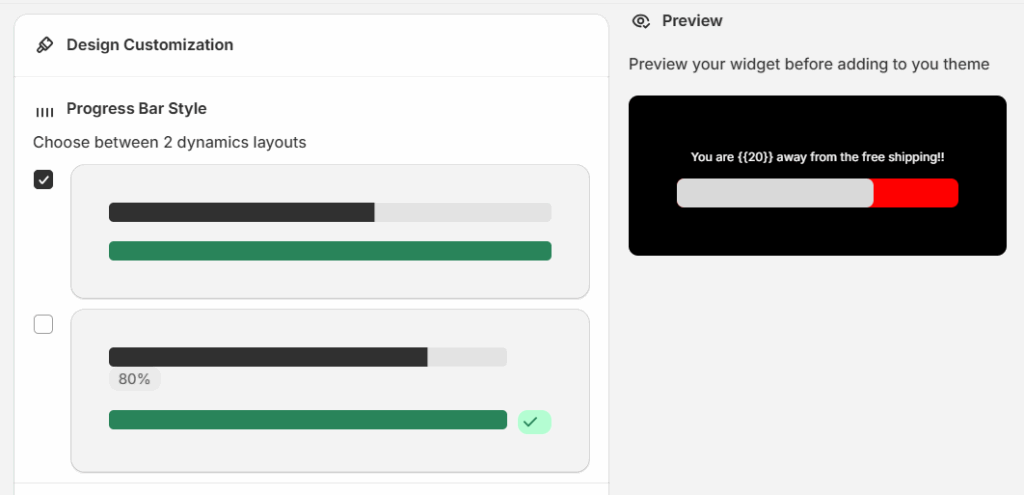
Under Design Customization, you’ll find two layout options for the progress bar. These define how the free shipping goal is visually displayed to customers.
- The first layout shows a clean progress bar without any numbers or labels. It’s minimal and works well with most storefront themes.
- The second layout includes a percentage indicator on the bar. This gives customers a visual cue of how close they are to reaching the free shipping threshold.
Click to select the layout that best fits your design. The preview on the right will update immediately so you can see how it looks.
Adjusting Colors and Typography
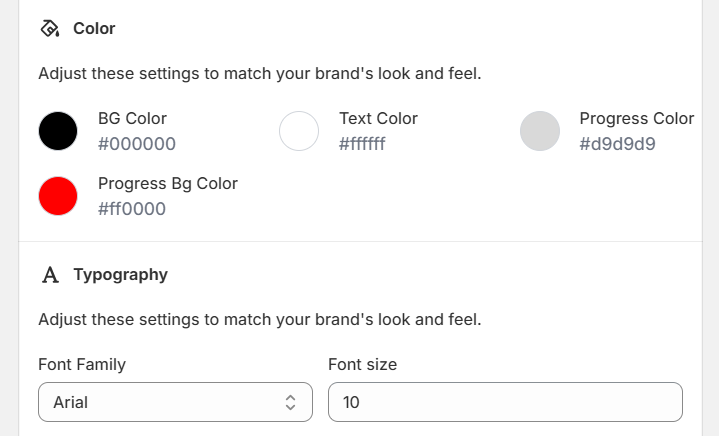
You can adjust each color element of the progress bar:
- BG Color: Background color of the container
- Progress Bg Color: Background of the progress line
- Progress Color: Foreground progress line color
- Text Color: Color of the text displayed in the bar
Below the Color section, you can also change the font style and size to match your store’s branding from the Typography section.
- Font Family: Select from available fonts
- Font Size: Enter a value in pixels
Once done, click Save to apply changes.