
Product Labels in MarketWise let you customize how labels look and where they appear on product images. You can adjust text size, spacing, alignment, padding, margins, colors, position, and priority of each label type.
To do so, go to Product Labels from the app admin and select the Positioning & Style tab.
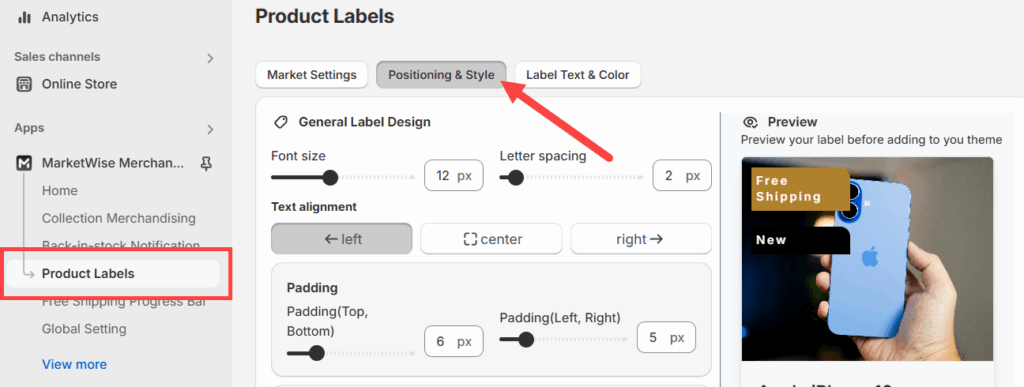
We’ll briefly cover available design settings in this page below.
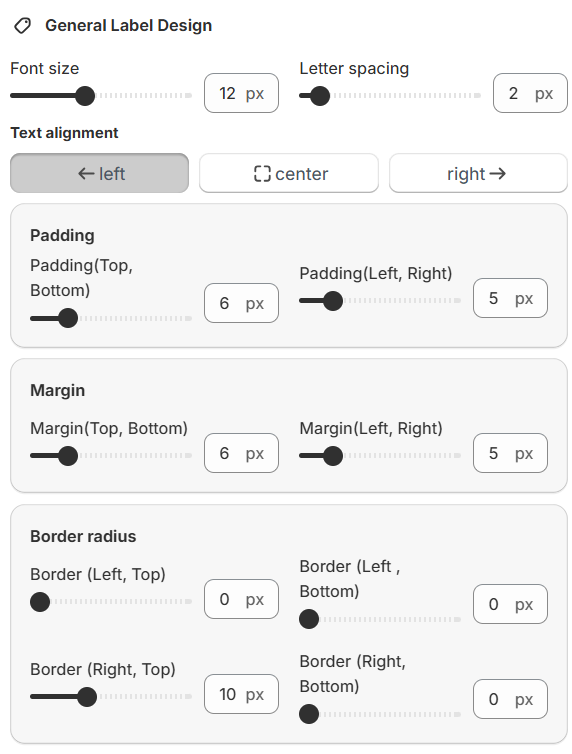
General Label Design
- Font size: Use the slider to increase or decrease the label text size.
- Letter spacing: Adjust the spacing between characters in the label.
- Text alignment: Choose between left, center, or right alignment.
Padding and Margins
- Use separate sliders for top/bottom and left/right values.
- Adjust the padding and margins for vertical and horizontal spacing of the label within its container.
Border Radius
- Customize the corner radius of each corner (top left, bottom left, top right, bottom right) to control how rounded the label edges are.
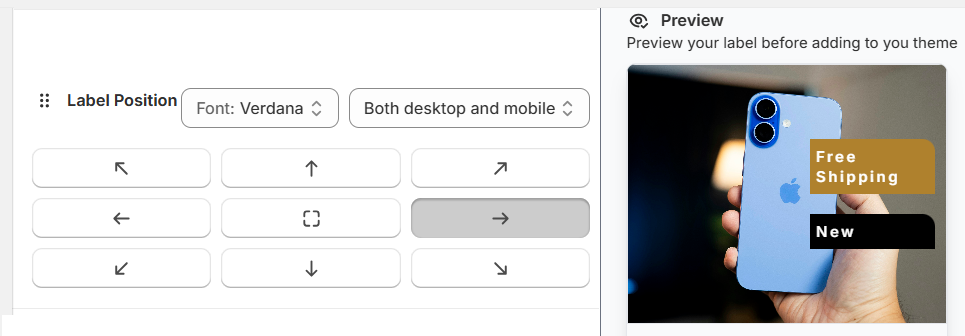
Label Positioning on Product Image
- Choose a predefined position for your label using the position grid.
- Example: Top left, bottom right, center, etc.
You can also:
- Select a font from the dropdown.
- Choose whether the label should appear on both desktop and mobile or only one of them.
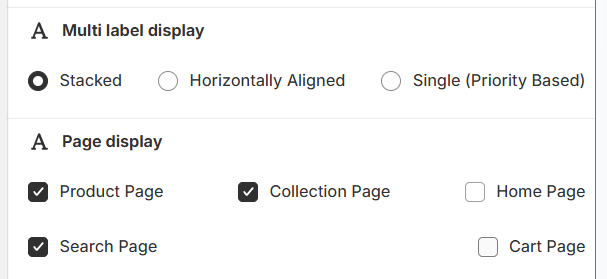
Multi-Label Display Options
In the same section, under Multi label display, choose how multiple labels appear:
- Stacked: Display one label below another.
- Horizontally Aligned: Place labels side by side.
- Single (Priority Based): Only show the highest priority label for each product.
Note: The label order priority is controlled in the Label Text & Color tab.
Selecting Page Visibility
You can choose where the labels appear on your store:
- Product Page
- Collection Page
- Home Page
- Search Page
- Cart Page
Use the checkboxes to enable or disable label display on these pages.
Setting Label Priority and Text
Go to the Label Text & Color tab.
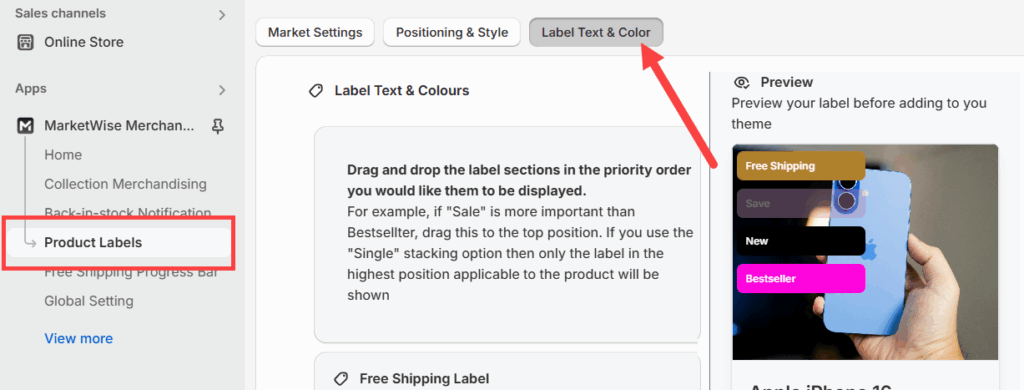
Then, drag and drop label blocks to arrange them by priority. The top label is given the highest priority.
Example: If “Sale” is above “Bestseller,” and you’re using the “Single” label display option, only “Sale” will show.
From this tab, you can also:
- Edit the text shown on each label in the text box.
- Customize background and text colors for each label.
- Optionally adjust border width (in pixels).
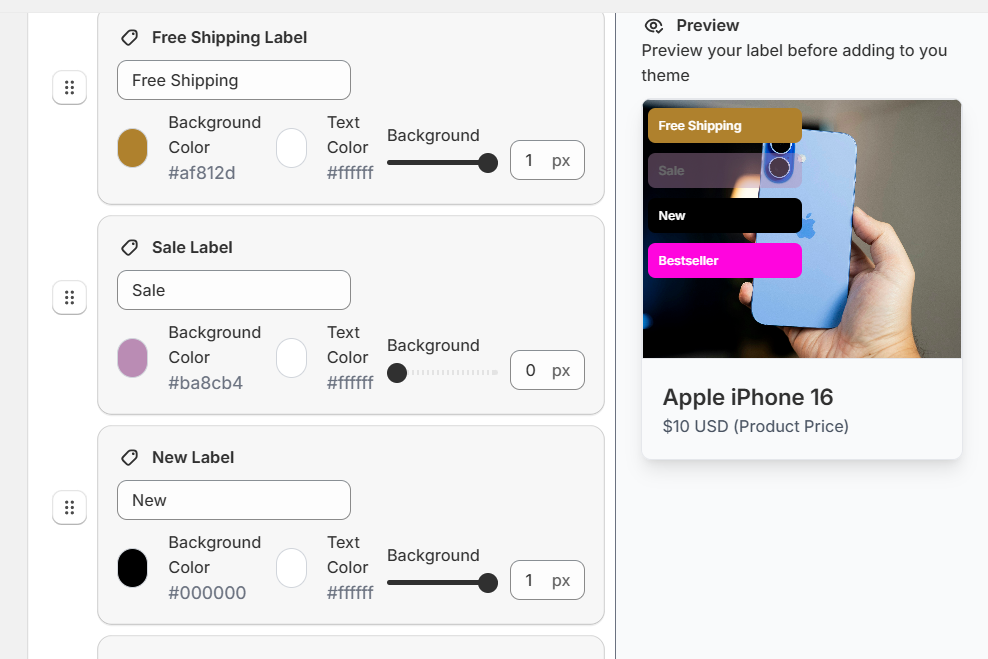
Once your changes are complete, click Save to apply them to your store.